Daily Archives: September 21, 2007

QuickStart for building an Astoria data service

Here’s a quick start for checking out astoria. See my  blog post “what the heck is astoria” if necessary. 🙂

Requirements:
VS2008 Beta 2
Entity Framework Beta 2
Entity Framework Tools August CTP
Astoria CTP September refresh (which works with VS2008 Beta 2)

Note that I had to do this in XP. I’m having a wierd problem in Vista around the ASPNETCompatibilityEnabled setting in web.config. You can follow the discussion of that if you are interested in this forum thread. The thread is accidentally a combination of Kevin Hoffman’s issues with IIS and my issue with Cassini. They don’t seem to be related problems.

1. Start a new web application project (not website) in VS2008.

2. Add an ADO.NET Entity Data Model using the projects Add New Item dialog.
If you haven’t used the wizard before, you can see this blog post.
The basic steps are

  • Generate from Database
  • SElect a database (same as doing this for other data UIs in Visual Studio)
  • Just leave default names for things for this quickstart. (I pointed to Northwind in SQL Server and it defaulted at NorthwindModel and NorthwindEntities, etc)
  • Select all database objects (this is the default). This brings in tables, sprocs and views.
  • Then finish and you will see the EDMX file in the solution. You can double click on that to see the conceptual model (one of three parts of the model) in the designer. Note that this is just a simple way of getting a model from a database, the most basic type of conceptual model.

Add a Web Data Service.
Add New Item, choose Web Data Service. It’s in the main section (Visual Basic/ C#, not categorized into Data or Web templates) down on the bottom, alphabetical. 🙂

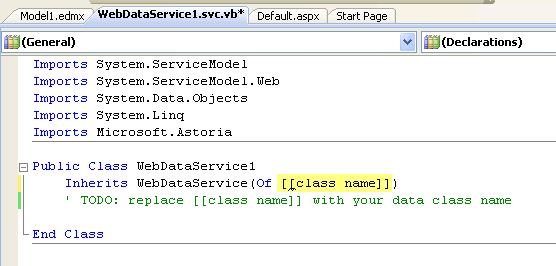
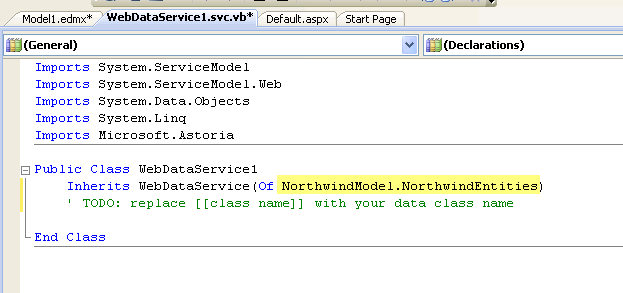
The services code view should open up. Note the TODO for the class. All you need to do is replace the stub [class name]

(VB)
(C#)
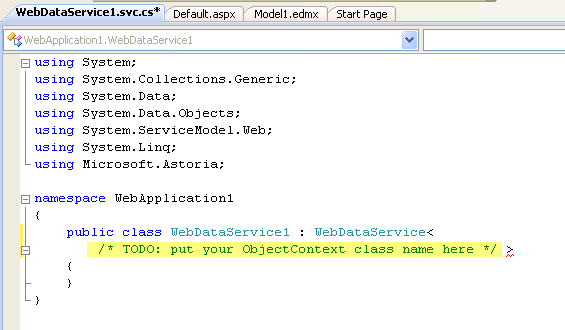
with the name of your entity wrapper class created in the model. THe model code gens a class file.
 

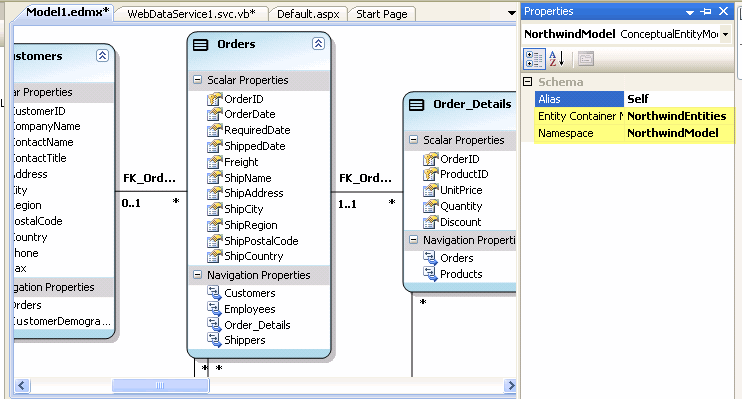
You can open up the model in teh designer and then see it’s Namespace and Entity Container Name in the properties.
 

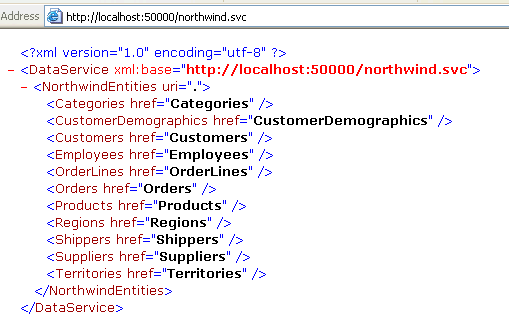
That’s it! Now you can browse the web service directly (eg. right click on svc file in solution explorer and View in Browser) and start looking at how the data is exposed through the EDM.

My What the Heck is Astoria post walks through some quick query scenarios to give you an idea of what you can do.

This is just the tip of the iceberg of course. See the Astoria Team blog for more info.
What the heck is Astoria?

I’ll be doing a session on Astoria at REMIX Boston 07 (10/8-10/9) and at the New England Code Camp (9/29-9/30).

What is Astoria?

Astoria exposes data as web services through an Entity Framework Data Model. Once exposed, you can use URI based syntax to query data through the conceptual layer of the entity data model. You can control what is and isn’t exposed and you can also do inserts, updates and deletes. The results can be output in a number of formats including JSON and ATOM.

It’s simplest to understand this by looking at some queries in a web browser. The Astoria CTP add-in for Visual Studio 2008 Beta 2 has a template for creating a Web Data Service that looks like a WCF service. It only needs one class to expose the whole kit n’ caboodle and that class inherits from WebDataService, a generic class. You merely need to tell that class that the type it is dealing with is the Entities class exposed by an Entity Data Model that you have created. The class doesn’t even have any code in it.

  public class northwind : WebDataService<NorthwindModel.NorthwindEntities>
    {
    }

Then you can just make calls to that service and start playing with the query syntax.

The base service exposes the list of entities in the model (http://mysite/myservice.svc). The payload is just a raw XML representation of the data. There will be payloads for different formats, such as JSON, ATOM and more. See this Astoria team blog post for more info.

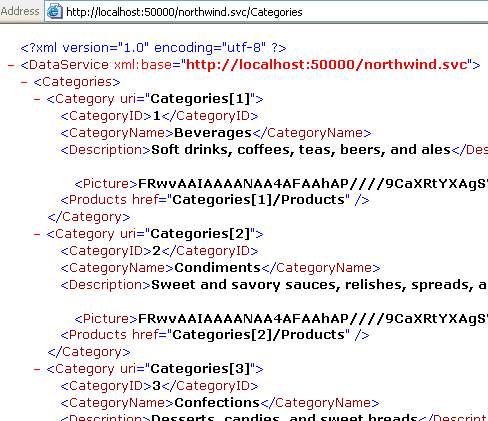
Then you can start drilling in. Here for example, I have asked for the Categories entities. It will return all entities with their details.

Now you can start seeing the URIs that are displayed to show you how to drill further into data. When looking at it in the browser, you might want to click on those URIs, but remember, in a real app this is not how you will be working with the results of the service call. 🙂 Note that you can see how to get to the related Products data although it is not pulled in automatically. That’s no different than how Entity Framework works by default – deferred loading of related data.

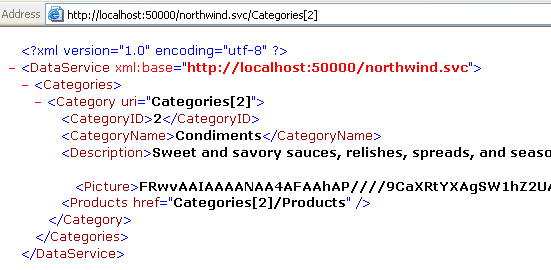
So let’s try the Category uri for categoryID 2.

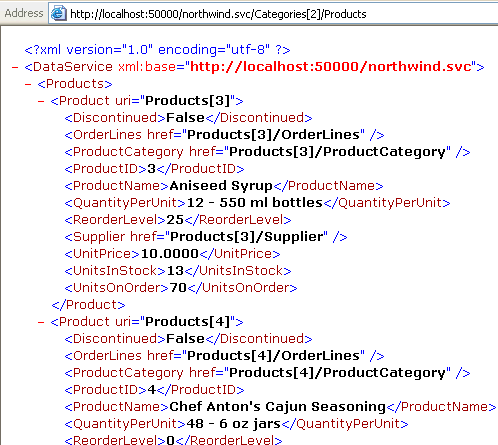
And then get the products for that category.

So you can see now the basic concept of what Astoria is doing. I am not forced to write a billion operations in my web service to expose my data every which way. I don’t have to deal with building xmldocuments to return data that can be consumed by anyone, not just .NET clients that can deal with serialized datasets. With proper security in place and the possibility of customizing what is and isn’t exposed (and how), consumers of my data can now have easy access to do all kinds of reporting, mash-ups and more. The fact that any consumer will know what to do with any data that is exposed via an astoria web data service is huge.

You can learn more about Astoria by following the Astoria Team blog.