I’ve done this demo many times in conference and user group sessions. Someone on the ADO.NET forums asked how to do it and I thought I would just do a quick tutorial with screenshots.
What this Tutorial does is demonstrate how to create and use a data source from a particular entity in the model. I’m just doing simple drag and drop and no filtering or anything here with the goal of just a quick basic walkthrough for getting started.
Start by creating a Windows Application.
Add an Entity Data Model.
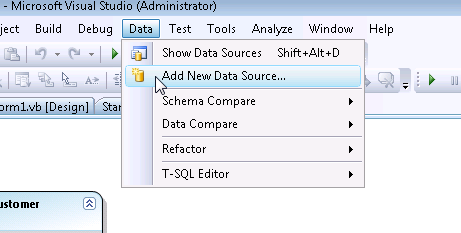
Select Data from the menu and choose Add New Data Source
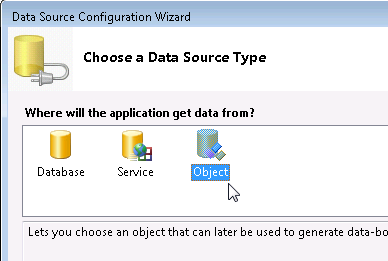
In the first page of the wizard, choose Object as your Data Source Type.
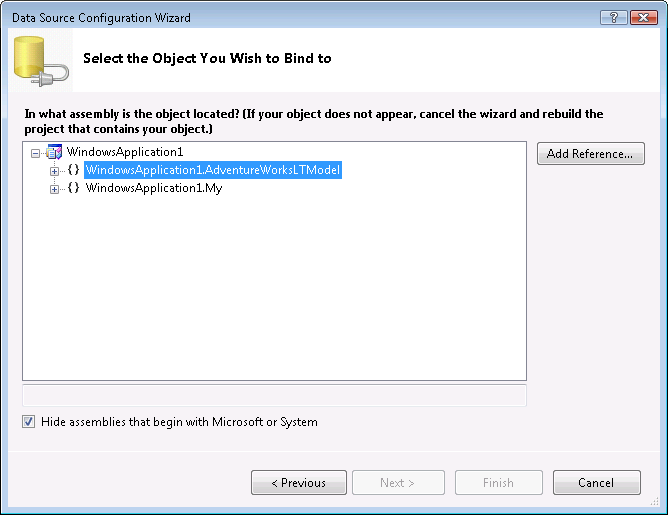
The next screen of the wizard will show the namespaces in the current solution. Open up the namespace for the application
then choose the entity which you want to use as a Data Source. I will pick customer.
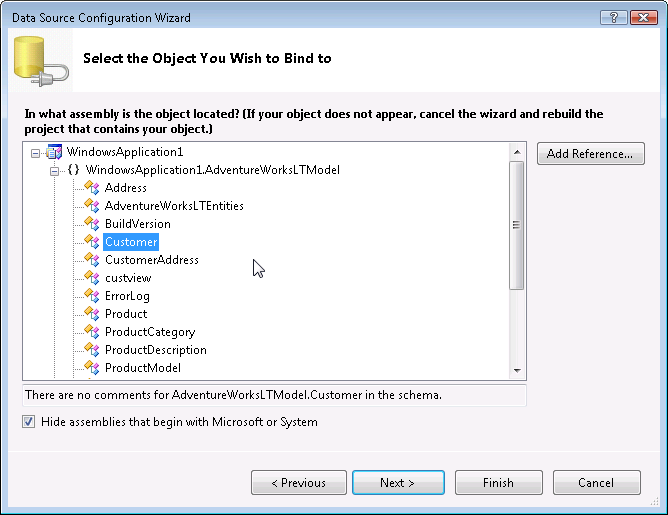
Then you can Finish the Wizard.
Now to get easy access to the datasource, go back to the menu and choose Show Data Sources from the Data menu.
The DataSources Window will be placed in your IDE in it’s default location. Mine docks with the windows on the left.
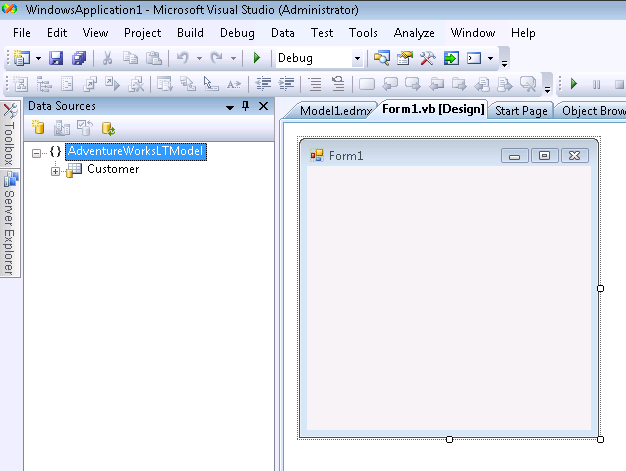
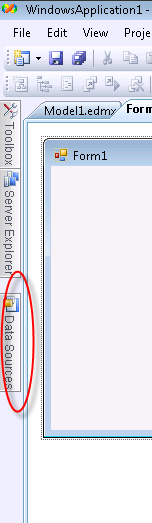
When it’s not pinned it gets tucked away with the others. You can undock it and put it wherever you want.
I can now drag and drop the customer data source onto the windows form to get the automatic DataGridView and Navigation toolbar (this is normal behavior for DataSource and not specific to Entity Framework).
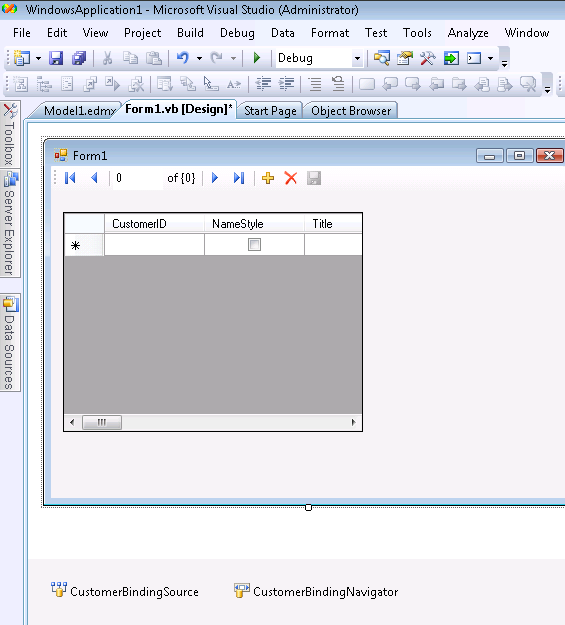
There are a few more steps to actually getting user interaction with this. You need to populate the Binding Source and if you want to edit, you’ll need to add a little code to the save button on the toolbar.
You’ll need to enable the BindingNavigatorSaveButton (just click the save icon on the navigator toolbar and change it’s Enabled property to True). Additionally, you’ll probably want to format the grid which you can do easily from it’s SmartTag and more thoroughly through the properties window.
Here’s what the code behind looks like in my form enabling me to view, add, delete, edit and save data.
Imports WindowsApplication1.AdventureWorksLTModel
  Public Class Form1
   Private aw As AdventureWorksLTEntities
   Private Sub Form1_Load(ByVal sender As System.Object, ByVal e As System.EventArgs) _
    Handles MyBase.Load
     aw = New AdventureWorksLTEntities
     CustomerBindingSource.DataSource = aw.Customer.OrderBy(Function(cust) cust.CompanyName)
   End Sub
   Private Sub CustomerBindingNavigatorSaveItem_Click(ByVal sender As System.Object, _
   ByVal e As System.EventArgs) Handles CustomerBindingNavigatorSaveItem.Click
     aw.SaveChanges()
   End Sub
 End Class
Note that because the AdventureWorks Customer table has the following constraints: ModifiedDate must be a valid date value and the PasswordHash and PasswordSalt fields cannot be Null, I have extended the entity class to take care of these things when SaveChanges is called.



.jpg)